Available for:
- Project managers
- Team editions and higher
Some files can be imported with a warning. In such case, a yellow triangle icon will be shown in the job's row. You will be able to to work with the file but you should always check the warning. If the file cannot be imported to Memsource, a red icon will be shown in the job's row and the file will not be imported.
You can choose to save your translations without context when importing new jobs to a project. Do this by clicking on New in the Jobs section.
for short and imporant lists, we will use colors:
- Edit the content externally in other tools

- Edit the content directly in Memsource
You can choose to save your translations without context when importing new jobs to a project. Do this by clicking on New in the Jobs section.
The available options are
- Edit the content externally in other tools
- Edit the content directly in Memsource
You can choose to save your translations without context when importing new jobs to a project. Do this by clicking on New in the Jobs section.
For long lists we can use the basic formatting
- long
- list
- of
- items that doesn't need colors
- Edit the content externally in other tools
- Edit the content directly in Memsource
Normal text above the screenshot and the standard space around image.
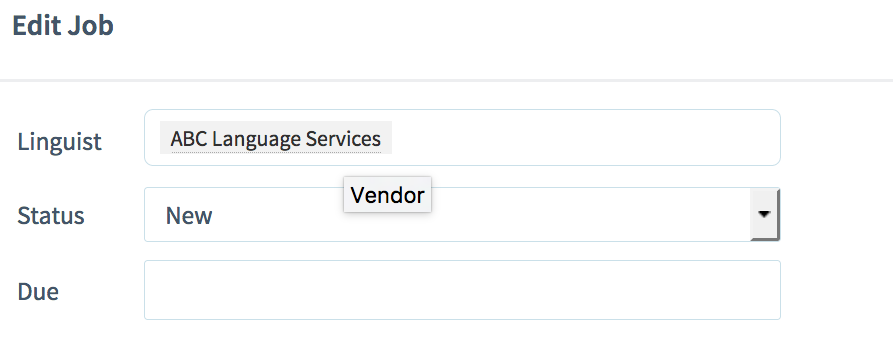
Normal text under the screenshot and a standard space around an image.
Examples of divs
Example of Note
Note
You can choose to save your translations without context when importing new jobs to a project. Do this by clicking on New in the Jobs section.Example of Tip
Tip
You can choose to save your translations without context when importing new jobs to a project. Do this by clicking on New in the Jobs section.Example of Important
Important:
You can choose to save your translations without context when importing new jobs to a project. Do this by clicking on New in the Jobs section.Example of Recommendation
Recommendation:
You can choose to save your translations without context when importing new jobs to a project. Do this by clicking on New in the Jobs section.Example of tabs for Editors (and other cases, where we need to toggle two/three versions)
Find and Replace function
The Find and Replace function can be very useful when...
Find
To find words in the source or target, use the text filter fields. To learn more about text filters in the Editors, see the text filter article for the Desktop Editor.Exact search (using quotes) is not available in the Web Editor (only in the Desktop Editor).
Replace
To replace or replace all, proceed as follows (the replace for source is not available in the Web Editor, only in the Desktop Editor):
- Enter the words you need to replace in the text filter
- After you have entered the word(s) in the filter, expand the additional segment filter options and then expand the Replace menu
- Now you can use the Replace or Replace All features
| Month | Savings |
|---|---|
| January | $100 |
| February | $80 |
| March | $90 |
| Sum | $270 |
Comments
comment
A bit longer comment. A bit longer comment. A bit longer comment. A bit longer comment. A bit longer comment. A bit longer comment. A bit longer comment. A bit longer comment. A bit longer comment. A bit longer comment. A bit longer comment. A bit longer comment. A bit longer comment. A bit longer comment. A bit longer comment. A bit longer comment.
Please sign in to leave a comment.